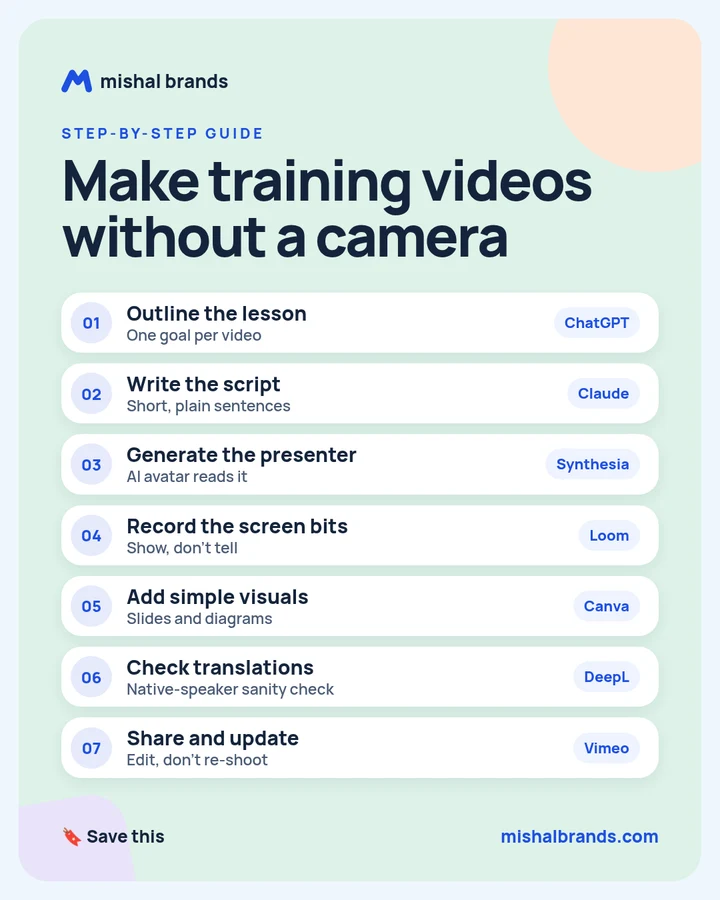
Create training videos without a camera: step-by-step guide
Outline one goal per video, write a short plain script, let an AI avatar present it, record the screen for software steps, add simple slides, check translations with a native speaker, and host it where you can update it instead of re-shooting.
Updated· By Mishal Brands Editorial
What did Synthesia report about Teleperformance?
Vendor-reported case study.Synthesia reports that Teleperformance, which employs over 380,000 people in more than 170 markets, uses Synthesia for eLearning videos on topics such as compliance, quality assurance and career development. Synthesia says the team saves an average of 5 days per video compared with other authoring and video creation tools, in one language, and that the team could start making videos after one day of training.
Suggested workflow. These 7 steps are a workflow for one trainer with off-the-shelf tools. Teleperformance used Synthesia, and the other tools here are our suggestions.
Save the cheat sheet. The full steps are below.
What are the 7 steps?
STEP 1 · ChatGPT
Outline the lesson
What to do
Give each video one goal, then ask for 3 to 5 key points that get the learner there.
Example
Lesson outline prompt (any chat AI)
Outline a 3-minute training video. Audience: [role]. Goal: after watching, they can [one action]. Give 3 to 5 key points in order, one example per point, and one quiz question to check understanding. Use plain language.
Sample outline, “How to log a customer refund”: 1) when a refund is allowed, 2) where to find the order, 3) the three fields to fill in, 4) what the customer sees next. Quiz: “Which field is required for every refund?”
Tip
If the outline needs more than 5 points, split it into two videos.
Turn the outline into short, plain sentences, then read it out loud once. If you stumble, the avatar will sound stiff there too.
Example
Sample 60-second script, about 140 words:
“Hi, and welcome. In the next minute, you’ll learn how to log a customer refund. First, check the refund is allowed: the order must be less than 30 days old. Next, open the order. Search by the customer’s email, then click the order number. Now fill in three fields: reason, amount and refund method. The reason is required every time. Click Submit. The customer gets an email confirming the refund. That’s it. If a refund is older than 30 days, don’t log it here. Send it to your team lead. Next, try it yourself in the practice account.”
The policy details in this sample are placeholders. Use your own.
Tip
Keep sentences under 15 words, and spell out numbers the way they should be spoken.
Paste the script into Synthesia and pick an AI avatar and voice to present it, with no filming. Synthesia’s case study lists 140+ stock AI avatars, 120+ AI voices and 140+ languages and accents. Our tool page lists a free Basic plan with 10 video minutes and 500 credits that renew monthly. See the Synthesia pricing page.
For software steps, show the clicks instead of describing them. Loom is a screen recorder with an editor for trimming and stitching clips. Our tool page lists a free Starter plan capped at 25 videos and 5-minute recordings.
Example
Record the refund steps in one take: search, open the order, fill in the three fields, submit. Then trim the pauses.
Tip
Use a test account with fake customer data, never a real customer’s.
Translate the script, then have a native speaker review it before you publish. DeepL’s site says it translates text and full document files and offers a translation glossary.
Example
Add product names and job titles to a glossary, so they are never translated.
Ask the reviewer to read the script out loud, not just skim it.
Check dates, currency and units for each country.
Tip
Translate the final script, not a draft. Every later edit has to be translated again.
Host the video where your team can find it, and when something changes, edit it instead of re-shooting. Vimeo’s site lists video hosting, auto captions and transcription. Synthesia’s case study says a video can be updated at any time without starting from the beginning.
Example
When the refund window changes from 30 to 45 days, edit one sentence in the script, regenerate the scene, and replace the video.
Tip
Put a “last updated” date in each video’s description.
Get written consent before you make an avatar or voice clone of a real person, and follow your company’s policy.
Use stock avatars when you don’t have consent.
Tell learners the presenter is an AI avatar if your policy requires it.
Keep sensitive or emotional topics, such as layoffs or harassment training, with a real person.
Localisation tips
Write the source script in plain language first. Idioms translate badly.
Keep text in visuals to a minimum, so there is less to translate.
Use a glossary for product names and roles.
Have a native speaker review every language before you publish.
Re-record the screen parts if your software has a different language setting.
The honest part
AI presenters suit clear, factual training. Sensitive or emotional topics still deserve a real person.
Consent comes first. Follow your company’s rules before using anyone’s likeness or voice.
This is a vendor case study. Synthesia published the Teleperformance numbers about its own customer. We have not checked them independently.
Results vary.
Frequently asked questions
Do I need a camera or studio?
No. In this workflow an AI avatar presents the script and screen recordings show the software steps.
How long should a training video be?
Long enough for one goal. If the outline has more than 5 points, split it.
Can I make the same video in other languages?
Yes. Synthesia’s case study lists 140+ languages and accents. Have a native speaker check every translation before publishing.
What did Teleperformance report?
Synthesia’s case study says Teleperformance saves an average of 5 days per video compared with other authoring and video tools, in one language, and trains a workforce of over 380,000 people. These are vendor-reported figures.
Can I use an avatar of a real colleague?
Only with their consent and within your company’s policy. Otherwise, use a stock avatar.
This guide is written by Mishal Brands Editorial. Tool features come from each vendor’s official site or our tool pages, and the case figures come from the linked source, labelled by who reported them. We name tools as examples, and the steps are a suggested workflow. Where we are in an affiliate program, the link is marked and disclosed.
Free pack: prompts for better AI images
A short, copyable set of image prompts for product shots, portraits, thumbnails, logos, and ads. These are starting points you can adapt — not a promise of any result.